

Explore policies. Find groups. Discover filters.
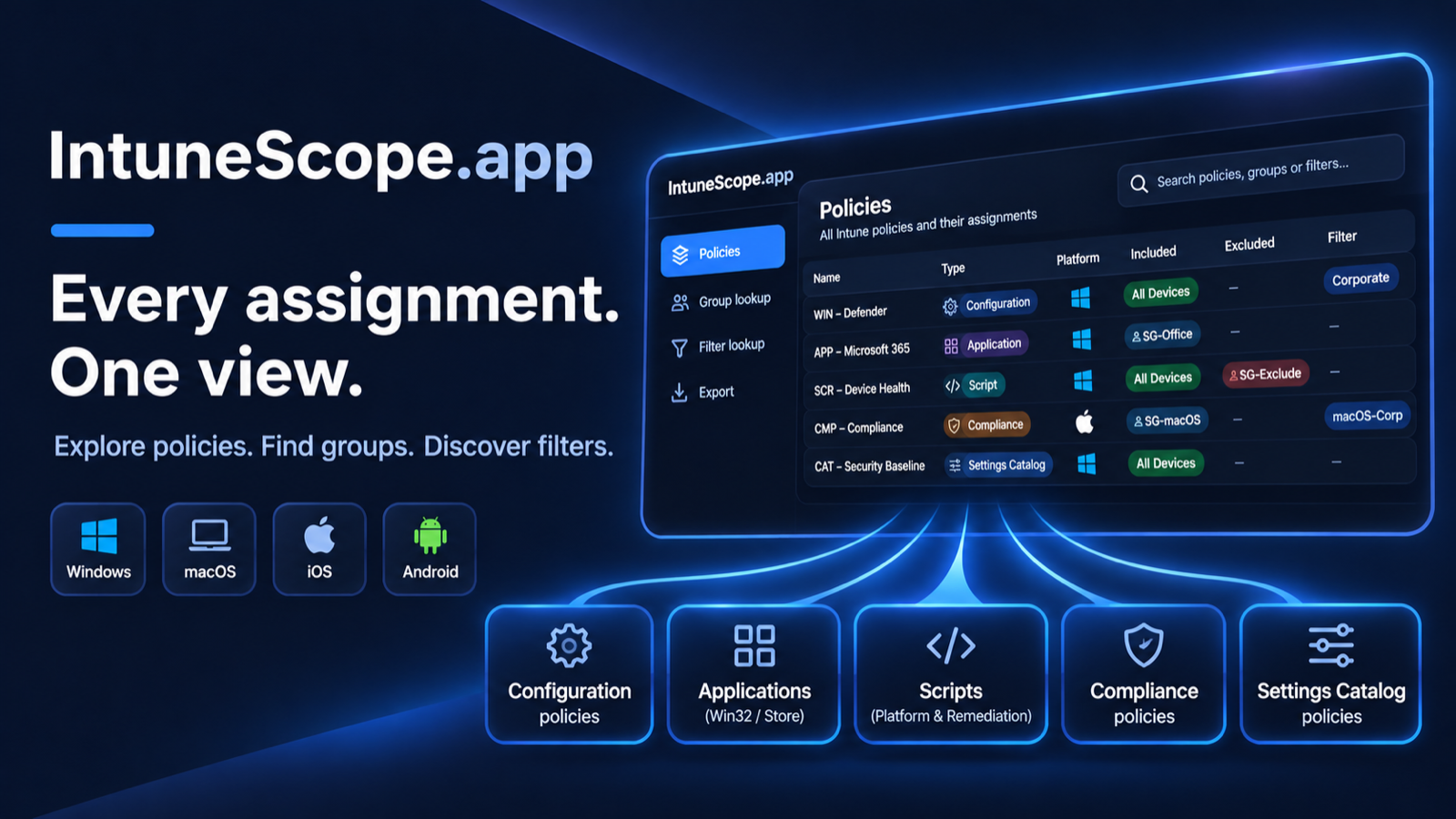
Intune shows assignments one policy at a time. But the question I usually need answered is the reverse:
What does this group actually get? And where is this filter used?
Answering that in the Intune admin center means opening policy after policy, app after app, script after script.
Where the idea came from
I was at a customer where we migrated a hybrid setup from Group Policy to Intune.
During the migration, we used a specific Entra group to target the new Intune policies.
When the migration was done, every policy assigned to that group had to be changed. So we needed an easy overview of exactly which policies used the group, so we could update all of them and not miss a single one.
Intune doesn’t give you that view. You can see who a policy is assigned to, but not everything a group is assigned to.
The answer was opening every single policy, one by one, and checking its assignments. That’s about a thousand clicks, and it’s far too easy to miss one.
So instead of a thousand clicks, I built an app. 😎
Meet IntuneScope.
A free, open-source web app that loads every policy, app and script in your tenant with its assignments, and answers those questions in seconds, straight from your browser.
Every assignment. One view.
https://github.com/Simsen/IntuneScope
What IntuneScope does
- Policies: browse every object with its targets, assignment filters and filter mode, across all platforms.
- Group lookup: pick an Entra group and see every policy, app, script and remediation that includes or excludes it.
- Filter lookup: pick an assignment filter and see everything that uses it, in include or exclude mode.
- Export: Excel (with an About sheet) or CSV, one row per assignment.
- Bulk edit (Editor): add, replace or remove assignments, or change filters, across many policies.
Getting started
- Open https://intunescope.app/.
- Sign in with your Microsoft Entra ID account. The first time, an admin has to approve the app for the tenant (see below).
- Browse Policies, or open Group lookup or Filter lookup.
- Export the result to Excel or CSV if you need it in a report.
No install, no PowerShell, no backend.
Two modes, two app registrations
IntuneScope has two modes, and each one has its own app registration:
- Explorer is read-only. It uses delegated
Read.Allpermissions for configuration, apps and scripts, plusGroup.ReadBasic.AllandUser.Read. - Editor adds write permission for assignments of Settings Catalog, Endpoint Security, Device configuration and Compliance policies. It never changes policy settings, apps or scripts.
Because they are separate apps, a tenant can approve Explorer without ever granting write access, and can lock Editor down further with assignment required and Conditional Access.
Both use delegated permissions, so they never exceed the signed-in user’s own rights: Intune RBAC and scope tags still apply. If your role can’t see an object, IntuneScope can’t either, and every lookup says which workloads were and weren’t searched.
How Editor changes assignments safely
Bulk-editing assignments is exactly where one wrong click hurts, so Editor works in steps:
- One platform per batch. Assignment filters are platform-specific, and Graph doesn’t check the pairing, so IntuneScope does.
- Preview from a fresh read: before and after, per policy.
- A JSON backup downloads first, with a ready-to-use restore body per policy.
- Compare-and-skip: each policy is read again right before writing. If it changed since the preview, it’s skipped.
- Verify: IntuneScope reads every policy back after writing and compares, and you can download an execution report.
Privacy and security
IntuneScope is a static web app. Your browser talks directly to Microsoft Graph, signing in with MSAL and PKCE, with no client secret.
Data is held in memory only: close or refresh the tab and it’s gone. There’s no analytics, no telemetry, and no server of mine in between.
Limits, by design
- Direct references only. A group nested inside an assigned group isn’t resolved.
- Not device-level. IntuneScope shows what targets a group or filter, not what one specific device ends up receiving.
- Scope tags reduce what Graph returns. Results are labelled accordingly, so “nothing found” reads as No references found in the workloads you can see.
Try it
Open https://intunescope.app/ and sign in, or start the demo to look around in a Contoso sample tenant first.
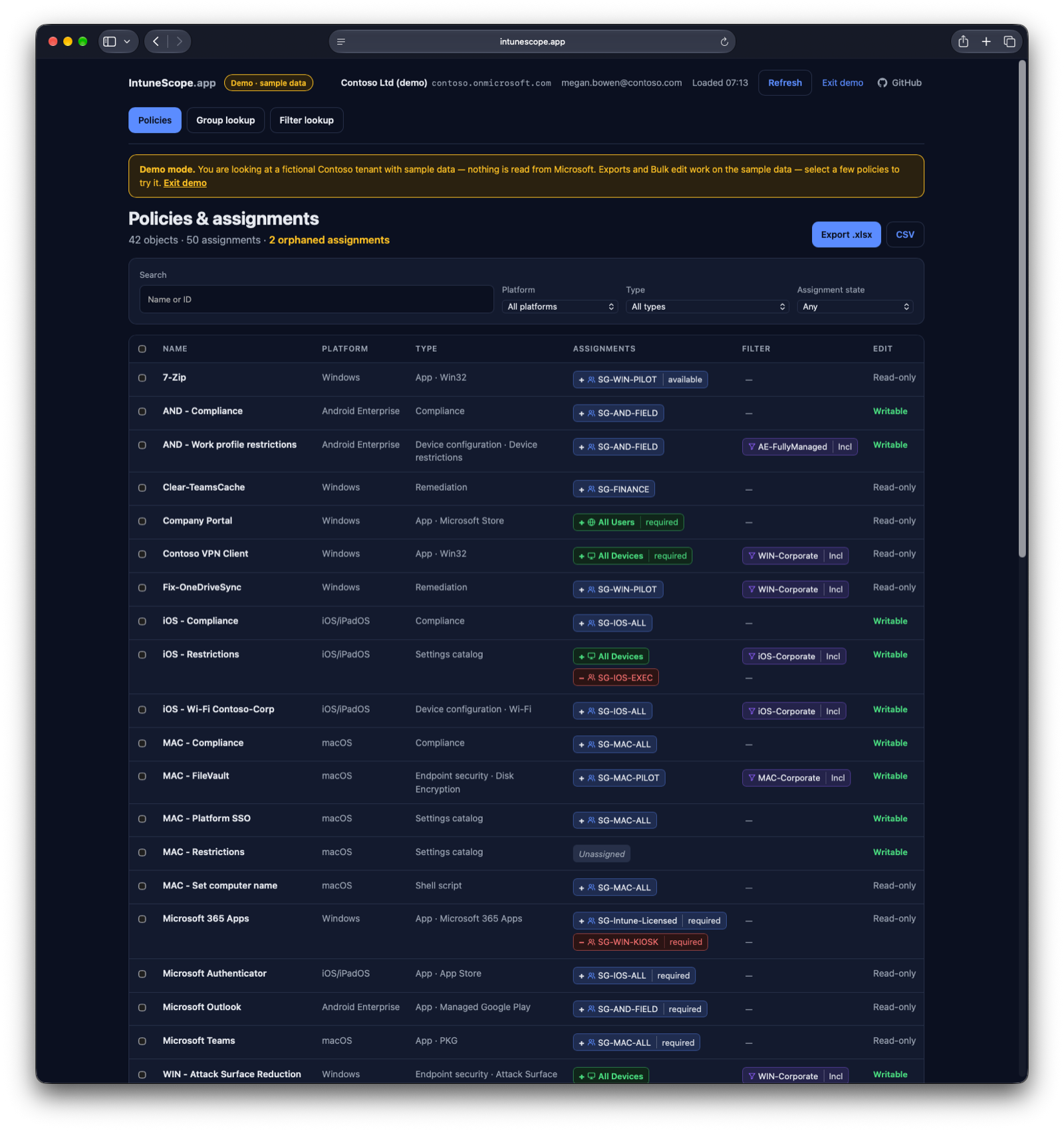
That’s it! No PowerShell scripts, no exports to piece together, and no thousand clicks.
IntuneScope is free and open source under the MIT license. You can also host it yourself; the README on GitHub explains how.
If you find a bug or have an idea, open an issue on GitHub.